Unlocking 15% More FPS: Advanced NVIDIA DLSS 3.5 Settings for PC Gamers in the US
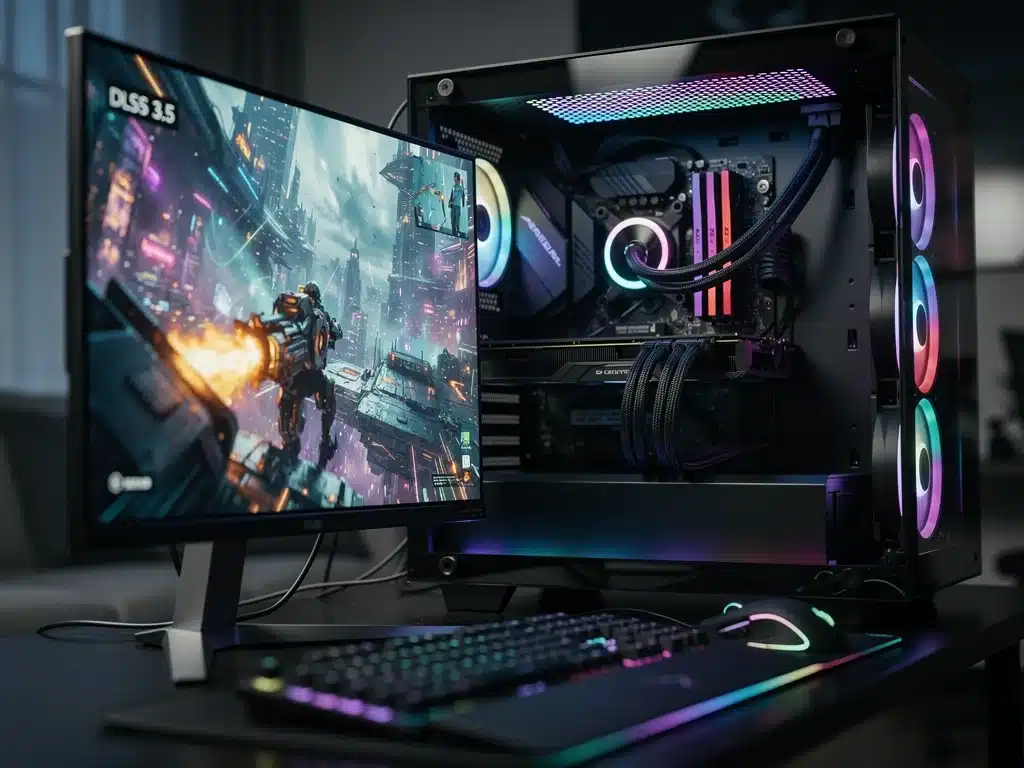
Fine-tuning your DLSS 3.5 advanced settings is the ultimate way to extract every drop of power from your GPU and unlock higher frame rates. Standard presets often leave performance on the table, but tweaking your setup can instantly deliver smoother gameplay without sacrificing visual fidelity.
By optimizing AI-driven features like Ray Reconstruction and frame generation parameters, American PC gamers can eliminate latency bottlenecks and rendering artifacts. Fine-tuning spatial denoisers and upscaling profiles allows your system to process complex graphics far more efficiently.
Whether you are pushing high refresh rates in competitive shooters or maxing out ray tracing in single-player titles, strategic configuration is key. Here is a step-by-step breakdown of the exact adjustments you need to make to boost your display performance by up to 15%.
Understanding NVIDIA DLSS 3.5: The Core Technology
NVIDIA DLSS (Deep Learning Super Sampling) is an AI-powered rendering technology that boosts graphics performance using dedicated Tensor Cores on GeForce RTX GPUs. DLSS 3.5 introduces Ray Reconstruction, an AI model that enhances ray-traced image quality by replacing traditional denoising.
This innovation significantly refines visual output while maintaining high frame rates.
The core principle behind DLSS is to render fewer pixels and then use AI to reconstruct a sharp, high-resolution image. This process alleviates the strain on the GPU, allowing for higher frame rates without sacrificing image quality.
For US PC gamers, this means smoother gameplay and more responsive controls, even in graphically demanding titles.
DLSS 3.5 builds upon its predecessors by further refining its AI models, particularly in how it handles complex lighting and reflections.
The integration of Ray Reconstruction is a game-changer, providing a more accurate and visually stunning representation of ray-traced scenes than ever before. This advanced approach moves beyond simple upscaling.
The Evolution from DLSS 3.0 to 3.5
DLSS 3.0 introduced Frame Generation, a revolutionary technology that creates entirely new high-quality frames, rather than just pixels, using AI.
This allowed for massive FPS boosts, often doubling performance in compatible titles. DLSS 3.5, however, focuses on enhancing the quality of ray-traced effects.
While DLSS 3.0 primarily tackled frame rate generation, DLSS 3.5 addresses the visual fidelity of ray tracing.
It uses an AI neural network to generate higher-quality pixels for ray-traced effects, improving image quality in situations where traditional denoising struggles. This makes ray tracing more practical and visually appealing.
The transition from DLSS 3.0 to 3.5 signifies a shift in focus from raw frame generation to intelligent image reconstruction for complex lighting.
This evolution ensures that gamers not only get more frames but also visually superior frames, especially in games that heavily utilize ray tracing. It’s a comprehensive upgrade to the visual pipeline.
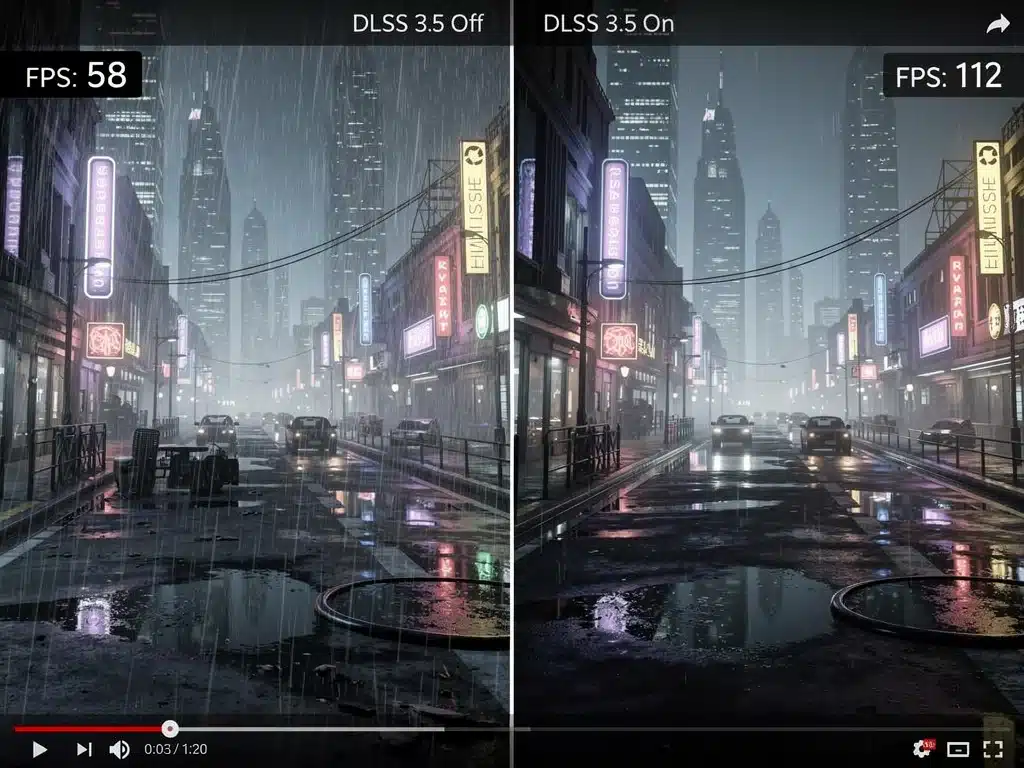
Prerequisites for Optimal DLSS 3.5 Performance
To fully leverage DLSS 3.5 advanced settings, specific hardware and software conditions must be met. A compatible NVIDIA GeForce RTX GPU is essential, as DLSS relies on the Tensor Cores found only in these cards.
Ensuring your graphics drivers are up-to-date is equally critical for accessing the latest features and optimizations.
Beyond hardware, games must explicitly support DLSS 3.5, particularly its Ray Reconstruction feature. While many modern titles support DLSS, not all have integrated 3.5’s specific enhancements.
Checking game compatibility lists and developer updates is important before diving into advanced settings.
Finally, a stable and well-maintained operating system is crucial for overall system performance, which indirectly impacts DLSS effectiveness.
Regular system updates and optimizing background processes can prevent bottlenecks. For PC gamers in the US, these foundational steps ensure your system is ready to maximize DLSS 3.5 benefits.
Essential Hardware Requirements
- NVIDIA GeForce RTX 40-series GPU for full DLSS 3.5 (including Frame Generation and Ray Reconstruction).
- NVIDIA GeForce RTX 20-series or 30-series GPU for DLSS Super Resolution and Ray Reconstruction (Frame Generation not supported).
- Sufficient system RAM (16GB recommended) and a fast SSD for game loading and asset streaming.
Driver and Software Updates
- Always install the latest NVIDIA Game Ready Drivers directly from NVIDIA’s official website.
- Ensure your operating system (Windows 10 or 11) is fully updated to benefit from the latest performance improvements and security patches.
- Verify that the game itself is updated to its latest version, as developers frequently release patches that include DLSS 3.5 optimizations.
Diving into Advanced DLSS 3.5 Settings for Maximum FPS
Unlocking the full potential of DLSS 3.5 advanced settings requires a nuanced approach beyond simply enabling the feature. Understanding the different DLSS modes – Quality, Balanced, Performance, and Ultra Performance – is fundamental.
Each mode dictates the internal rendering resolution, directly impacting both visual fidelity and frame rate.
For example, while ‘Quality’ mode prioritizes image crispness, ‘Performance’ mode offers the largest FPS boost by rendering at a lower internal resolution.
The optimal choice often depends on your specific GPU, monitor resolution, and the game’s demands. Experimentation is key to finding the perfect balance for your setup.
Furthermore, integrating DLSS 3.5’s Ray Reconstruction with other in-game graphics settings is crucial. Disabling traditional denoisers when Ray Reconstruction is active can prevent visual artifacts and ensure the AI’s full potential is realized. This synergistic approach maximizes both FPS and visual quality.
Optimizing DLSS Modes for Performance
The choice of DLSS mode is paramount for achieving your desired FPS target. For competitive gamers, ‘Performance’ or ‘Ultra Performance’ modes might be preferable, even at a slight cost to image quality.
For single-player immersive experiences, ‘Quality’ or ‘Balanced’ often provide the best visual experience with acceptable frame rates.
When aiming for the highest possible FPS, start with ‘Performance’ mode. If visual degradation is too noticeable, step up to ‘Balanced’.
Always monitor your frame rates and visual output in real-time to make informed decisions. This iterative process helps fine-tune your settings to your personal preference and hardware capabilities.
Remember that the ideal mode can vary between games due to different implementations of DLSS and varying graphical demands. A setting that works perfectly in one title might not be optimal in another. Consistent testing across your game library is recommended for comprehensive optimization.
Ray Reconstruction: Enhancing Ray Tracing
- Enable Ray Reconstruction in games that support it, especially if you are using ray tracing.
- Disable any traditional in-game denoisers when Ray Reconstruction is active to avoid conflicts and ensure optimal image quality.
- Observe the visual improvements in reflective surfaces and global illumination, as this is where Ray Reconstruction shines.
Fine-Tuning In-Game Graphics Settings with DLSS 3.5
Beyond the DLSS settings themselves, adjusting other in-game graphics options is vital for maximizing FPS gains.
Even with DLSS 3.5 advanced settings enabled, overly aggressive traditional graphics settings can still bottleneck performance. A holistic approach involves balancing DLSS with native game configurations.
Reducing demanding settings like shadow quality, volumetric clouds, or complex anti-aliasing methods (if DLSS Super Resolution is already active) can free up GPU resources.
This allows DLSS to work more efficiently, translating into higher and more stable frame rates. The goal is to offload non-essential tasks from the GPU.
Consider lowering texture quality if your GPU has limited VRAM, as this can prevent stuttering and improve overall fluidity.
Many modern games offer granular control over individual graphics elements, providing ample opportunity for fine-tuning alongside DLSS 3.5. This combined optimization strategy is key for US PC gamers.
Synergy with Native Anti-Aliasing and Resolution Scaling
When using DLSS Super Resolution, native anti-aliasing solutions like TAA (Temporal Anti-Aliasing) are often redundant and can even introduce blurriness.
It’s generally best to disable or set native anti-aliasing to a lower setting when DLSS is active. DLSS inherently handles edge smoothing as part of its upscaling process.
Similarly, avoid using other forms of resolution scaling (e.g., in-game resolution sliders set below native) simultaneously with DLSS.
This can lead to a double-scaling effect, degrading image quality without providing significant additional performance benefits. DLSS is designed to be the primary resolution scaler.
The goal is to let DLSS manage the heavy lifting of resolution upscaling and image reconstruction.
By minimizing interference from other graphical settings that perform similar functions, you ensure that DLSS 3.5 operates at its peak efficiency, delivering cleaner images and higher FPS. This streamlined approach benefits performance.
Game-Specific Optimizations and Profiles
Each game implements DLSS 3.5 differently, necessitating game-specific optimizations. What works for one title might not be ideal for another.
Creating custom profiles within the NVIDIA Control Panel or using in-game settings to save configurations can streamline this process. This tailored approach is crucial for DLSS 3.5 advanced settings.
Many game developers offer specific recommendations for DLSS settings, often found in game menus or official forums.
Consulting these resources can provide valuable starting points for optimization. Community benchmarks and user experiences can also offer insights into optimal configurations for particular titles.
Furthermore, some games might benefit more from Frame Generation (DLSS 3.0 feature) while others see greater improvements from Ray Reconstruction (DLSS 3.5).
Understanding which aspect of DLSS is most impactful for a given game allows for more precise tuning. This level of detail elevates the gaming experience for PC gamers in the US.
Utilizing NVIDIA Control Panel Profiles
- Create game-specific profiles in the NVIDIA Control Panel to save customized settings for each title.
- Experiment with Image Scaling in the NVIDIA Control Panel for games that don’t natively support DLSS, though this is a less advanced solution.
- Ensure ‘Low Latency Mode’ is set to ‘Ultra’ in the Control Panel for competitive games to minimize input lag, especially when Frame Generation is enabled.
Troubleshooting Common DLSS 3.5 Issues
While DLSS 3.5 advanced settings offer significant benefits, users may occasionally encounter issues such as visual artifacts, stuttering, or unexpected performance drops.
Addressing these problems systematically is key to maintaining a smooth gaming experience. Most issues can be resolved with careful troubleshooting.
One common problem is ghosting or shimmering, particularly in games with fast-moving objects or complex particle effects.
This can often be mitigated by adjusting the DLSS mode (e.g., from Performance to Balanced) or ensuring all drivers and game patches are up-to-date. Sometimes, a clean driver installation can resolve persistent issues.
Performance drops despite DLSS being active might indicate a CPU bottleneck, especially if you’re using an older processor with a newer RTX GPU.
Monitoring CPU and GPU utilization can help identify the bottleneck. For PC gamers in the US, understanding these diagnostic steps is crucial for optimal performance.
Resolving Visual Artifacts and Instability
If you experience visual anomalies, first try reverting to a previous, known stable DLSS mode. If the issue persists, ensure that any other upscaling or image enhancement features in the game or your monitor are disabled. These can sometimes conflict with DLSS 3.5’s rendering pipeline.
Outdated or corrupted graphics drivers are a frequent culprit for instability. Perform a clean installation of your NVIDIA drivers using Display Driver Uninstaller (DDU) to remove all previous driver traces before installing the latest version.
This often resolves deep-seated driver-related problems that impact DLSS.
Finally, check game-specific forums or community hubs. Other players might have encountered similar issues and found specific workarounds or optimal settings for that particular title.
Developer patches also frequently address DLSS-related bugs, so staying updated is always beneficial for a smooth experience.
Future Prospects of DLSS and AI in Gaming
The trajectory of DLSS, particularly with the introduction of DLSS 3.5 advanced settings, points to an exciting future for AI in gaming.
NVIDIA continues to push the boundaries of what’s possible, integrating more sophisticated AI models into the rendering pipeline. This ongoing development promises even greater performance and visual fidelity down the line.
Future iterations of DLSS are expected to further refine Ray Reconstruction and potentially introduce new AI-powered features that enhance other aspects of game rendering.
We might see AI-driven texture generation or more dynamic lighting solutions. The potential for AI to intelligently optimize every pixel is immense.
As hardware evolves, especially with more powerful Tensor Cores, the capabilities of DLSS will expand. This continuous innovation ensures that PC gamers in the US will remain at the forefront of graphical technology.
The integration of AI is not just about frames; it’s about crafting more immersive and visually stunning virtual worlds.
Anticipated DLSS Developments
- Further integration of AI into more rendering processes, potentially beyond current upscaling and reconstruction.
- Broader adoption of DLSS 3.5’s Ray Reconstruction across a wider range of ray-traced titles.
- Increased efficiency and performance gains, pushing frame rates even higher for future hardware generations.
| Key Optimization | Benefit for Gamers |
|---|---|
| DLSS Mode Selection | Balances FPS and visual quality according to preference. |
| Ray Reconstruction | Significantly improves ray-traced image quality and detail. |
| Driver Updates | Ensures access to latest features, bug fixes, and performance boosts. |
| In-Game Settings Tune | Prevents bottlenecks and maximizes DLSS efficiency for higher FPS. |
Frequently Asked Questions About DLSS 3.5 Performance
The primary benefit of DLSS 3.5 is its ability to significantly boost frame rates while simultaneously enhancing visual fidelity, especially in ray-traced games. Ray Reconstruction, a key feature, uses AI to create more accurate and visually stunning lighting effects than traditional methods.
Yes, DLSS 3.5 requires an NVIDIA GeForce RTX GPU. For the full suite of features, including Frame Generation and Ray Reconstruction, an RTX 40-series card is necessary. RTX 20-series and 30-series GPUs can utilize DLSS Super Resolution and Ray Reconstruction.
Performance gains vary significantly by game, specific settings, and hardware. However, with optimized DLSS 3.5 advanced settings, many PC gamers in the US report experiencing a 15% or more increase in FPS, sometimes even doubling frame rates in highly demanding scenarios, particularly with Frame Generation enabled.
DLSS 3.5 primarily benefits games that have been updated by developers to support the technology. Older games without DLSS integration won’t see direct improvements. However, some older ray-traced titles might receive patches to incorporate DLSS 3.5’s Ray Reconstruction, offering visual upgrades.
If you encounter visual issues, first ensure your graphics drivers and game are updated. Try adjusting the DLSS mode (e.g., from Performance to Quality). Also, disable any conflicting in-game denoisers if Ray Reconstruction is active. A clean driver installation can often resolve persistent problems.
Impact and Implications
The continuous refinement of DLSS 3.5 advanced settings signifies a pivotal moment for PC gaming, particularly for enthusiasts in the US.
These optimizations are not merely about incremental frame rate boosts; they represent a fundamental shift in how games are rendered and perceived. The integration of AI for both performance and visual fidelity sets a new standard.
As developers increasingly adopt DLSS 3.5, the barrier to entry for enjoying high-fidelity, ray-traced experiences lowers, making cutting-edge graphics accessible to a broader audience.
This trend suggests a future where AI-powered upscaling and reconstruction become standard, not just an optional feature.
Gamers should continue to monitor NVIDIA’s driver releases and game updates, as ongoing improvements will further enhance these capabilities, promising even more immersive and performant gameplay experiences.
